
Order automation
Automate PDF Order Entry Into QuickBooks
Turn emailed and PDF purchase orders into validated QuickBooks sales orders without retyping. Built for distributors and manufacturers handling repeat B2B orders.
The short answer
Grabb automates PDF and email order entry into QuickBooks by extracting the customer, SKU, quantity, pricing and order details, validating them against your business data, and preparing the order for entry without manual retyping.
In this article
Grabb automates PDF and email order entry into QuickBooks by extracting the customer, SKU, quantity, pricing and order details, validating them against your business data, and preparing the order for entry without manual retyping.
Distributors and manufacturers that receive repeat B2B purchase orders by email can keep customers on their existing process. The order desk reviews exceptions instead of retyping every line. The workflow reads the email and attachment, matches order lines to QuickBooks records, flags uncertain information for review, and routes approved orders into QuickBooks Online or QuickBooks Desktop.
This is Commerce Operations for the order desk: not invoice OCR for accounts payable, and not a portal that forces customers to change how they buy.
See Grabb for QuickBooks Online · See Grabb for QuickBooks Desktop
Who this guide is for
This guide is for companies that sell physical products and receive repeat customer orders that must be entered into QuickBooks, including:
- Distributors and wholesalers processing multi-line orders from many business customers
- CPG and food and beverage brands managing customer-specific items, pack sizes, pricing and shipping details
- Manufacturers matching customer part numbers and descriptions to internal products
- Importers and brand owners combining email orders with sales from other channels
- Operations and customer-service teams that review orders before fulfillment and invoicing
These businesses may sell different products, but their order desks face the same problem: customers use their own document layouts, product descriptions and purchasing language while QuickBooks requires consistent customer, item and transaction data.
Customer purchase orders are different from vendor purchase orders
A customer purchase order is a request from your customer to buy products from your company. From your perspective, it normally needs to become a sales transaction.
A vendor purchase order is a document your company creates when buying products from a supplier.
This distinction matters because many document-processing products specialize in accounts payable. They extract supplier invoices and bills. Product companies looking to automate incoming customer orders need a system that understands sales-order information, product matching and customer-specific purchasing language.
How PDF-to-QuickBooks automation works
1. Capture the customer order
The customer continues using their existing ordering process. They send an order through email, usually as a PDF or spreadsheet attachment.
The order is routed to the order-processing workflow without requiring the customer to learn a new purchasing portal.
And it doesn’t stop with PDFs.
Amazon, ecommerce, EDI, and other order channels can all flow into the same order inbox, with one consistent validation process.
One place for every order. One set of rules. Less manual work.
On average, Grabb saves seven to ten minutes of manual entry per order.
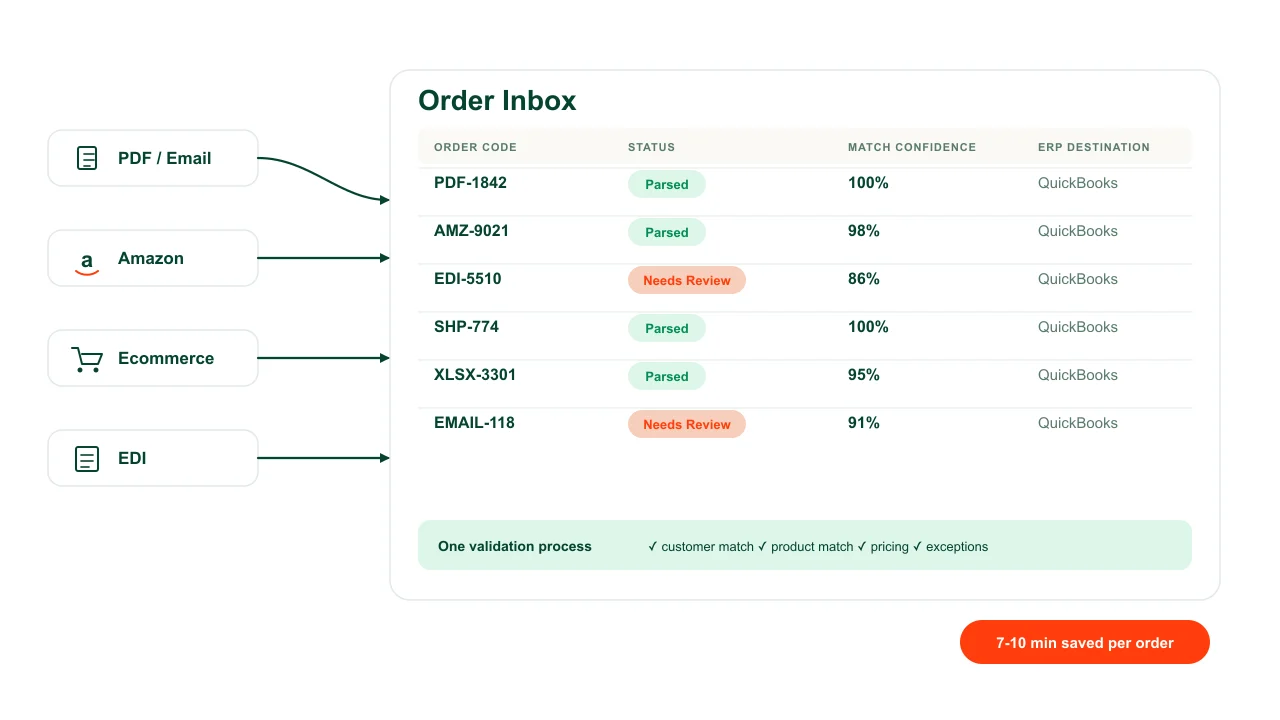
One Order Inbox for PDF, Amazon, ecommerce, EDI, and other channels, with the same validation rules.
2. Extract the order information
Grabb reads the order and structures the information needed for processing.
Depending on the source document and configured workflow, this may include:
- Customer name
- Purchase-order number
- Order date
- Requested delivery date
- Shipping information
- Customer product number
- Internal product or SKU
- Product description
- Quantity
- Unit of measure
- Unit price
- Tax information
- Customer notes
The final field list must reflect the customer’s actual QuickBooks configuration and Grabb implementation.
3. Match customers and products
Extraction alone does not create a reliable order. The captured information must be compared with the company’s customer and product records.
For a distributor, CPG brand, food company or manufacturer, the product named on a customer’s purchase order may not match the internal QuickBooks item name. One customer might use its own part number, an abbreviated description or a packaging term such as case, box, pallet or unit.
A complete order-automation workflow must determine:
- Which QuickBooks customer placed the order
- Which internal item corresponds to each customer line
- Whether the quantity and unit of measure are valid
- Whether the price agrees with the configured customer rules
- Whether required order information is missing
- Whether the order can continue automatically or needs review
For a practical walkthrough of SKU matching, quantity validation, exception review and persistent customer mappings, see How to automate PDF purchase orders into QuickBooks with SKU and quantity validation.
For an ERP-agnostic order desk playbook that also includes a DIY AI workflow, see How to automate PDF and Excel purchase orders.
4. Review exceptions
An uncertain match should not silently become an incorrect order.
Grabb flags information that needs attention so an authorized user can review it before the transaction continues. This review step is particularly important when:
- A customer uses an unknown product number
- Two products have similar descriptions
- A quantity or price is unclear
- A required field is missing
- The customer record cannot be identified confidently
- The order contains handwritten or low-quality scanned information
- A new customer or product appears
The goal is to automate repeatable work while keeping people in control of ambiguous business decisions.
5. Send the approved order to QuickBooks
After validation, the structured order is routed into the configured QuickBooks workflow.
The exact destination can depend on:
- QuickBooks Online versus QuickBooks Desktop
- The QuickBooks edition and subscription
- The company’s existing order-to-invoice process
- Whether approval is required
- The transaction types supported by the integration
Possible destinations may include a sales order, estimate, invoice, draft transaction or another configured record. Grabb should confirm the exact destination during implementation instead of assuming that every QuickBooks company uses the same process.

QuickBooks Online versus QuickBooks Desktop automation
QuickBooks Online
Grabb connects to QuickBooks Online through an online integration. No local desktop connector is required.
A QuickBooks Online implementation should document:
- The records Grabb can read
- The records Grabb can create or update
- Required user permissions
- Whether users approve transactions before creation
- How disconnected or expired authorization is handled
- Which QuickBooks subscription features are required
QuickBooks Online sales-order availability can depend on the customer’s plan or inventory add-on. Confirm the destination transaction before activating automation.
Explore QuickBooks Online order automation
QuickBooks Desktop
QuickBooks Desktop requires a different connection architecture. Grabb’s current Desktop workflow uses a local connector to communicate with the company file.
A Desktop implementation should confirm:
- Supported QuickBooks Desktop products and versions
- Where the connector is installed
- Whether QuickBooks must be open
- Synchronization frequency
- Company-file permissions
- What happens if the computer or file is unavailable
- How queued orders resume after reconnection
- Who maintains and updates the connector
Explore QuickBooks Desktop order automation
Which tools automate PDF-to-QuickBooks order entry for product companies?
Tools generally fall into three categories.
PDF and OCR parsers
A document parser extracts text and tables from a PDF. It can work well when documents follow predictable layouts.
However, extraction is only one stage. Product companies may still need another system to match customers and items, apply business rules, manage exceptions and create the QuickBooks transaction.
Automation middleware
Workflow platforms can connect a document parser to QuickBooks.
This approach can be appropriate for a simple, consistent process. More complex implementations may require separate parsing rules, transformations, error handling and workflow maintenance.
Before selecting this approach, determine who will own the workflow when a customer changes its purchase-order format or QuickBooks data changes.
End-to-end order automation
An order-automation platform combines document capture, extraction, customer and product validation, exception review, and QuickBooks routing.
Grabb.AI belongs in this category. It can capture and validate orders received through PDF, email and spreadsheets and route them into QuickBooks Online or QuickBooks Desktop workflows.
For distributors, CPG and food brands, wholesalers, importers and manufacturers with multiple customers, changing document layouts and customer-specific product descriptions, this approach reduces the number of separate tools and handoffs that the operations team must maintain.
What product-driven businesses should evaluate
Before choosing a PDF-to-QuickBooks automation system, test it against real, redacted customer orders.
Evaluate whether it can handle:
| What is needed | Yes / No |
|---|---|
| QuickBooks Online or the company’s exact QuickBooks Desktop version | |
| Multi-page purchase orders | |
| Digital and scanned PDFs | |
| Email-body orders | |
| Excel or CSV attachments | |
| Customer-specific SKUs | |
| Description-based product matching | |
| Units of measure | |
| Customer-specific pricing | |
| Shipping addresses | |
| Taxes and payment terms | |
| Duplicate orders | |
| Missing or ambiguous fields | |
| Human approval | |
| An audit history | |
| Connection interruptions | |
| New document layouts | |
| Increased order volume |
A successful demonstration should show the original document, extracted fields, product and customer matches, exceptions, user corrections and the final QuickBooks result.
Grabb.AI for product-driven businesses
Grabb.AI is an order-automation and commercial-intelligence platform for companies that already run their operations through accounting, ERP, commerce and sales systems.
For QuickBooks order entry, Grabb connects the customer’s existing ordering process to the company’s internal records:
Email or document → extraction → matching and validation → exception review → QuickBooks workflow
The customer does not need to change how they submit an order. The operations team gets structured information and a controlled process instead of retyping each line manually.

Cultures Chloris: scaling Canadian retail orders with Grabb.AI and QuickBooks Online
Cultures Chloris is a Canadian licensed producer serving hundreds of dispensaries and retail locations across Canada. The company uses Grabb.AI to turn PDF and Excel purchase orders into structured QuickBooks Online order workflows, saving its team 22 hours each week.
Growth increased the pressure on the order desk
Reaching more retailers created a valuable growth opportunity for Cultures Chloris. It also made order execution harder for the team responsible for getting every product to the right location at the right time.
Orders did not arrive through one predictable channel or format. The team handled bulk orders, individual store orders, placements, bookings, PDFs and Excel files. Each retail relationship could also carry its own operating requirements for pricing, quantities, SKUs, delivery timing and regulatory information.
As order volume increased, the same team had more documents to interpret, more lines to enter and more exceptions to resolve. A missed SKU, incorrect quantity or late order could mean an empty shelf, delayed revenue, a retailer chargeback or strain on an important customer relationship.
Grabb connects incoming orders to QuickBooks Online
Grabb gives Cultures Chloris a controlled path from the customer document to QuickBooks Online:
PDF or Excel order → data extraction → customer and product matching → exception review → QuickBooks Online workflow
The automation reduces repetitive order entry while keeping the team involved when an order needs judgment. Different retail documents can be processed through the same operating workflow, giving the team a clearer way to manage bulk orders and store-specific orders without treating every file as a new manual project.
The value is larger than the hours saved
Cultures Chloris saves 22 hours of manual order work per week with Grabb. Those hours can return to customer service, fulfillment coordination and managing growth.
The operational value also extends to retail execution:
- Better control over pricing, quantities, SKUs and delivery requirements
- More consistent support for on-time, in-full (OTIF) targets
- Lower risk of preventable chargebacks caused by order-entry or timing issues
- Better shelf availability across individual retail locations
- More capacity to process growth without adding the same amount of administrative work
For a producer with products moving through hundreds of retail locations, reliable order execution protects more than productivity. It helps protect retailer confidence, shelf presence and the revenue opportunity behind every placement.
“We started using Grabb to process PDF POs and batch Excel POs into QuickBooks about a year ago. Since then our volume has gone up significantly and the manual work that came with each customer just isn’t a burden anymore. We also use the targets from sales module to build our budget. It’s become part of how we forecast production now. And the team is there when you need them. They listen and they’re very responsive!”
Hélène B. · Cultures Chloris
From order automation to store-level forecasting
Once its order data is structured, Cultures Chloris can use Grabb to understand demand variation at the individual store level. The team can see how products and locations behave differently, improve forecasts and make better decisions about fulfillment, inventory and revenue opportunities by store.
Learn how Grabb turns store- and SKU-level demand into forecasts and replenishment decisions.
Want to evaluate the same workflow with your own documents? Book a demonstration and bring a redacted PDF or Excel customer order.
FAQ
What is PDF-to-QuickBooks order automation?
PDF to QuickBooks order automation turns emailed and PDF purchase orders into validated QuickBooks sales orders without retyping. The workflow extracts customer, SKU, quantity, pricing and order details, validates them against your business data, flags exceptions for review and prepares the order for QuickBooks.
Which businesses benefit most from automated QuickBooks order entry?
It is best suited to product-driven businesses that receive repeat, multi-line customer orders, including distributors, wholesalers, CPG and food brands, manufacturers, importers and licensed producers. It is especially useful when customers use different order formats, product descriptions or purchasing rules.
Can QuickBooks read a PDF purchase order automatically?
QuickBooks does not treat an arbitrary customer PDF as structured order data. An extraction and automation layer is needed to read the document, map its fields and create the appropriate QuickBooks transaction.
Can Grabb process emailed PDF and Excel purchase orders?
Yes. Grabb supports customer orders received through email and supported attachments, including PDF and spreadsheet formats. Each implementation should be tested with representative customer documents and exception cases.
Can Grabb handle different customer layouts and retailer requirements?
Grabb is designed to process supported order documents from different customers and map their purchasing language to the company’s records. Workflows can account for fields such as customer-specific SKUs, pricing, quantities, shipping details and delivery requirements, with uncertain information sent for review.
Can Grabb process both bulk orders and individual store orders?
Yes. A configured workflow can process multi-location or bulk orders as well as orders for an individual store, provided the required customer, location, product and delivery information is present or resolved during review.
Does Grabb work with QuickBooks Online and QuickBooks Desktop?
Yes. Grabb supports both products, but the connection methods differ. QuickBooks Online uses an online connection, while QuickBooks Desktop uses a local connector.
Does Grabb create a sales order or an invoice?
The destination depends on the company’s QuickBooks product, subscription and configured workflow. Grabb confirms the supported destination record during implementation.
What happens when order information or a product match is uncertain?
Grabb flags missing, ambiguous or low-confidence information for human review rather than treating it as confirmed. The reviewer can check the original document, correct the extracted values or resolve the match before the order continues.
Does the customer need to use a portal?
No portal is required for supported email and document workflows. Customers can continue sending orders through their established process while the operations team receives structured information for review and QuickBooks entry.
How much time can PDF-to-QuickBooks automation save?
Savings depend on order volume, line count, document consistency and the number of exceptions. Cultures Chloris reports saving 22 hours of manual order work per week using Grabb with PDF and Excel orders and QuickBooks Online.
Can order automation help reduce errors, chargebacks and late fulfillment?
It can reduce the risk created by repetitive entry and missed order details by validating mapped fields and surfacing exceptions before approval. This can support more consistent on-time, in-full execution, although outcomes still depend on the company’s review, inventory and fulfillment processes.
Can the same order data support demand forecasting?
Yes. Once order data is structured by customer, store and SKU, it can support demand analysis and forecasting workflows. Grabb can help product companies identify variation by location and product so teams can make better inventory, fulfillment and revenue decisions.
Is this the same as invoice OCR?
No. Invoice OCR commonly focuses on extracting supplier invoices for accounts payable. Customer-order automation focuses on turning incoming customer purchase orders into sales-side transactions.
How should we test PDF-to-QuickBooks automation?
Use several redacted orders representing different customers, layouts, product descriptions and exception cases. Review the extracted values, matching decisions, corrections and final QuickBooks records before enabling production automation.
Order automation
See Grabb process one of your orders
Bring a redacted customer purchase order to a Grabb demonstration. We will map the document, validation requirements and appropriate QuickBooks workflow for your operation.